
Your phone may be the most useful object you own—and the most crowded. A short reset can make it quieter, easier to navigate and more protective of your attention.
Most of us do not decide to create a chaotic phone. It happens one permission, badge and “maybe I’ll need this” app at a time. A travel app keeps announcing deals months after the trip. Three shopping apps want attention before breakfast. Photos multiply, home-screen pages expand and every small vibration asks the same question: is this important?
A digital declutter does not require deleting social media, buying a minimalist device or disappearing for a weekend. Think of it as editing. In 20 focused minutes, you can reduce interruption, bring useful tools forward and review what your apps can access.
Minutes 0–3: Identify what earns immediate access
Begin with the lock screen. Which people and services genuinely need to reach you right away? Calls from family, calendar changes, banking alerts and travel updates may deserve immediacy. Retail promotions, games and most social notifications usually do not.
Make two mental lists: urgent and can wait. This prevents the common mistake of either leaving everything on or turning off so much that you worry about missing something important.
On iPhone, notification settings can be adjusted app by app, including where alerts appear, whether they make a sound and whether they arrive immediately or in a Scheduled Summary. Apple’s Focus modes can also allow selected people and apps while silencing the rest. Android offers similar controls, and Digital Wellbeing tools can show screen time, notification counts and how often the phone is unlocked.
Minutes 3–8: Quiet the noisiest apps
Open notification settings and look for the apps that interrupt without helping. Turn off alerts completely for the obvious candidates. For useful but non-urgent apps, keep notifications but remove sound, lock-screen appearance or badges. If your phone supports a scheduled summary, bundle low-priority alerts into one or two chosen times.
Be selective with news. Keep severe weather, community safety and the one news source you actually read; silence the five others repeating the same headline. For messaging apps, preserve direct messages if they matter and mute large group chats that create constant background noise.
This is not about becoming unreachable. It is about deciding that every company does not receive equal access to your attention.

Minutes 8–12: Give the home screen one clear job
Your first screen should support what you do most, not display every app you have downloaded. Keep essentials such as phone, messages, camera, maps, calendar and the health or transportation tools you use regularly. Move occasional apps to a second page, folder or the app library.
Then remove visual clutter. Delete widgets that duplicate information, shrink folders with vague names and move shopping or social apps away from the easiest thumb position if you tend to open them automatically. A simple wallpaper can make icons easier to read without turning your phone into a design project.
Do not spend ten minutes inventing a perfect folder system. Four or five plain labels—Travel, Money, Health, Photos and Tools—are more useful than a clever arrangement you will not maintain.
Minutes 12–16: Delete, offload or pause
Scan for apps you have not used in months. Remove obvious leftovers: old parking apps, one-time event tools, duplicate photo editors and trial services you never adopted. Before deleting anything tied to money, travel or authentication, confirm that you know the login and that removing it will not erase information you need.
If you are unsure, use the softer option. Some devices can offload or pause an unused app while preserving data. Android also allows permissions to be removed automatically from unused apps on supported versions. The goal is not an impressively low app count. It is fewer abandoned tools continuing to occupy space or retain access.
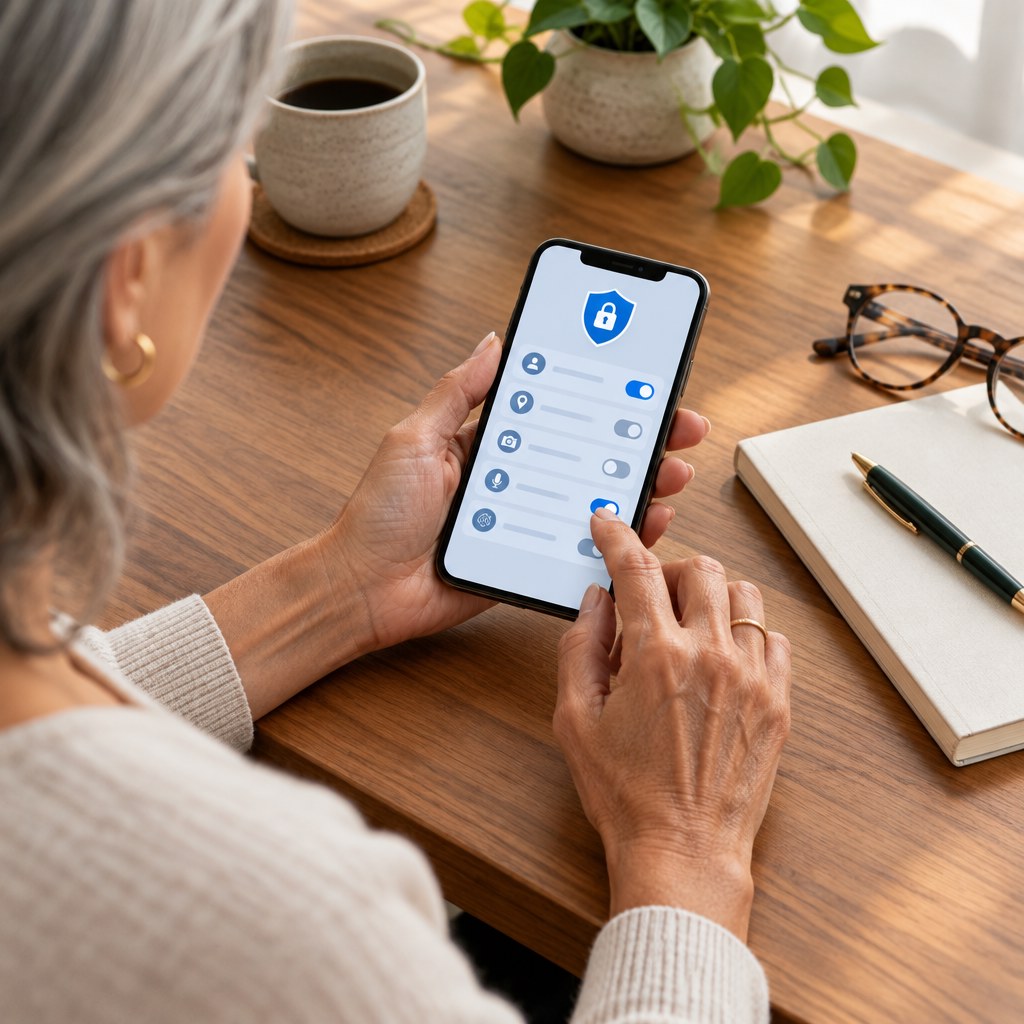
Minutes 16–19: Review the sensitive permissions
Open privacy or permission settings and check location, camera, microphone, contacts, photos and health data. Ask a simple question for each app: does its main function require this access?
A navigation app needs location while you are using it. A flashlight app does not need your contacts. A photo editor may need selected photos but not your entire library forever. Both iPhone and Android let users review permissions and, in many cases, choose options such as “while using,” “ask every time” or limited photo access.
Do not revoke permissions blindly from emergency, accessibility or device-management tools. When you are unsure, read the app’s explanation and make the narrowest choice that still lets the feature work.
Minute 19–20: Set one boundary that will last
Finish by creating one Focus or Do Not Disturb schedule—perhaps from bedtime until breakfast, or for the first hour of the workday. Allow favourite contacts and any genuinely time-sensitive apps. Test it rather than assuming it works exactly as expected.
Then stop. A good reset should make the phone easier to live with, not become another perfectionist project. Put a recurring 10-minute review on the first Sunday of each month, and future clean-ups will be far smaller.
The quiet-phone test
For the next day, notice three things: how often you pick up the phone without a purpose, whether important messages still arrive and which alerts you miss. Restore only what proves useful. Silence is not the objective; intentional access is.
Your phone should hold the details you do not want to carry in your head. It should not keep placing new ones there all day.
Find more practical lifestyle ideas at dfynemag.com.