

To organize digital photos, you do not need to label every sunset, rename 18,000 files or give up an entire weekend. You need a small system that helps you find the pictures you love—and a backup plan for the ones you could never replace.
Most of us carry years of life in one camera roll: birthdays, screenshots, recipes, receipts, pets, trips and twelve versions of the same group photo. The sheer volume can make sorting feel impossible. The answer is not a heroic clean-up. It is a repeatable three-pass reset.
Before you organize digital photos, define “done”
A useful photo library should do three things. It should make important pictures easy to find, reduce obvious clutter and protect irreplaceable files. That is enough. Perfection is not part of the brief.
If your whole phone feels crowded, begin with D’FYNE’s 20-minute phone reset. Then give photos their own short session. Set a 30-minute timer and choose one month, one trip or one event. A clear boundary keeps the project from expanding into every year of your life.
Pass one: keep the best, clear the obvious
Move quickly through a limited batch. Favourite the images that make you feel something or document something you will want later. Delete only the easy decisions: accidental pocket shots, unreadable photos, exact duplicates and screenshots that have already served their purpose.
When five pictures capture the same moment, keep the one with the best expression, composition or emotional pull. If you hesitate, keep it for now. The first pass is for momentum, not regret.
Both Apple Photos and Google Photos provide album tools without physically removing images from the main library. That distinction matters: adding or removing a picture from an album is not the same as deleting the original from your photo library.
Pass two: build albums you will actually use
A complicated hierarchy often becomes another abandoned project. Start with a handful of living albums that match how you search:
- People: close family, friends or a multigenerational group.
- Places: Japan 2026, cottage weekends or favourite local walks.
- Milestones: birthdays, graduations, home projects or celebrations.
- Practical: receipts, warranties, inspiration and recipes.
- Best of the year: a small collection for printing, sharing or a photo book.
Name albums in plain language. A year plus an event—“2026 Japan” or “2026 Family Summer”—sorts naturally and remains understandable years later. Avoid creating an album for every lunch, outing or week. Albums should reduce searching, not create more filing.
Pass three: add the missing context
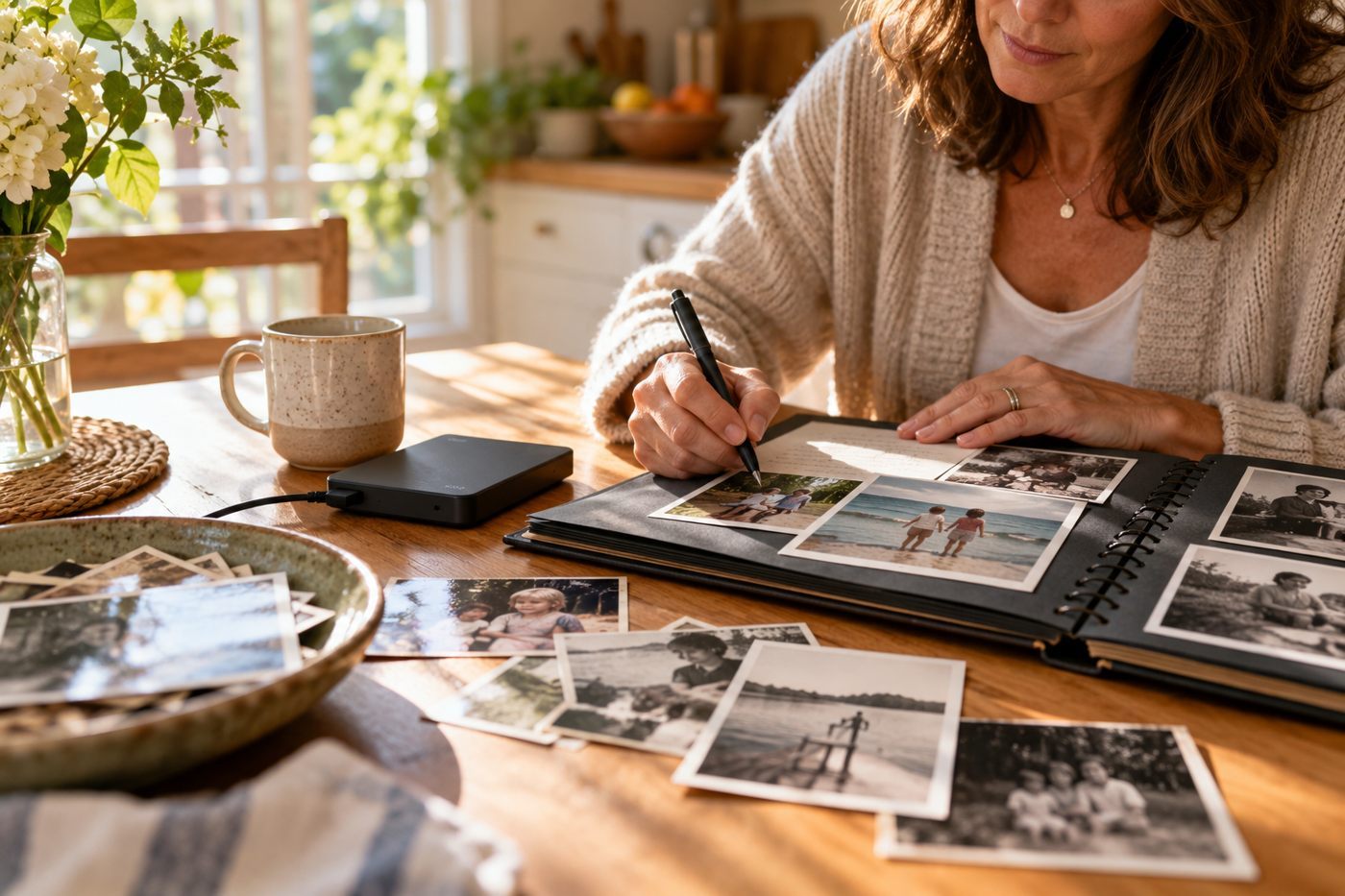
The value of a photograph is not only the image. It is knowing who is there, where it happened and why the day mattered. For your most important pictures, add a short caption or description where your photo app allows it. Correct dates when an old scanned image has inherited the date it was scanned instead of the date it was taken.
Prioritize context for older family photos and major life events. “Mum at the lake” is useful. “Mum at Lake Simcoe, summer 1978, first family cottage” is a gift to the next person who inherits the collection.
Organization is not a backup
A beautifully sorted phone can still be lost, damaged or locked. The Library of Congress recommends identifying what matters, organizing it, and saving copies on at least two different storage media kept in separate physical locations. It also advises moving saved copies to current storage about every five years.
For a personal collection, that might mean your main photo library plus a reputable cloud service and a periodic copy on an external drive stored elsewhere. The exact tools matter less than having more than one independent copy. Sync can be convenient, but do not assume that a change or deletion on one device can never carry across to another.
Before deleting a large batch, confirm that your backup is current and that you can open a few files from it. A backup you have never tested is only a promise.
A calm 30-minute photo reset
- Five minutes: choose one month, trip or event.
- Ten minutes: favourite the keepers and remove only obvious clutter.
- Ten minutes: add the best images to one or two clearly named albums.
- Five minutes: confirm your backup and add context to three important photos.
Repeat next weekend if it feels useful. Once the backlog is less intimidating, adopt a tiny monthly ritual: review the last 30 days, choose ten favourites, clear the screenshots and add one album. That habit is more durable than a once-a-decade digital purge.
What to do with the photos you save

A photo library should lead back to life. Make a small annual book, rotate a framed print, share an album with family or create a folder for a future celebration. The reward for organizing is not a lower file count. It is seeing the people and places that would otherwise remain buried in the scroll.
Start with one month. Keep what matters, describe a few memories and protect them in more than one place. That is a finished system—not because every photo is perfect, but because your favourites are finally within reach.